Esta es una página de archivo y se conserva como referencia. El contenido histórico está disponible solo en inglés.

Overview
ivsBatchConverter (ivsBC) is an IVS application that converts video files into the .dps file format of Leitch/Harris Velocity non-linear editing systems, preserving the quality of the source while using all the processing power of the computer: the faster the CPU, the faster the conversion, and the speed scales with the number of CPU cores.
During conversion it can correct aspect ratio (e.g. 4:3 to 16:9 or vice versa), colour space and resolution (e.g. HDV or HD 16:9 files to SD 4:3 PAL or NTSC .dps), apply high-quality filters such as glow, blur and sharpen, and even convert PAL to NTSC or vice versa (with frame-rate limitations). Every aspect of the processing can be controlled by the user; the guide below includes tutorials for the most common conversions.
The Pro edition was bundled with ivsPowerPack2007 and was also available as a Velocity plug-in.
Versions and downloads
Documentation: English user guide (PDF) (file no longer available), 18 December 2006. The guide (v1.1, written for ivsBatchConverter 1.6.4.2) is reproduced below. The software was licensed, not sold, and was provided "as is" under the IVS licence agreement.
System requirements
- Minimum: Windows XP SP2 or Windows 2000 SP4, 512 MB RAM, any CPU, some free hard disk space.
- Recommended: Windows XP SP2 or Windows 2000 SP4, 512 MB RAM, a recent CPU with the SSE3 instruction set (preferably dual-processor or multi-core), a fast hard disk.
Quick start
Projects
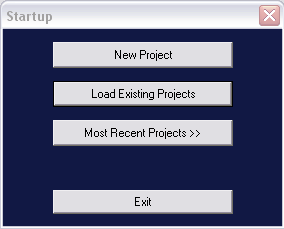
To simplify file handling, ivsBatchConverter uses a project structure similar to advanced NLE systems. At start-up the STARTUP window lets you create a new project, open an existing one, or open one from the list of recently used projects.
Creating a new project generates a project file (.ibl) and a set of folders for the converted files. New files to convert are automatically addressed to the project path, but one or more files can be sent to different folders at any time.
Click NEW PROJECT in the startup window:
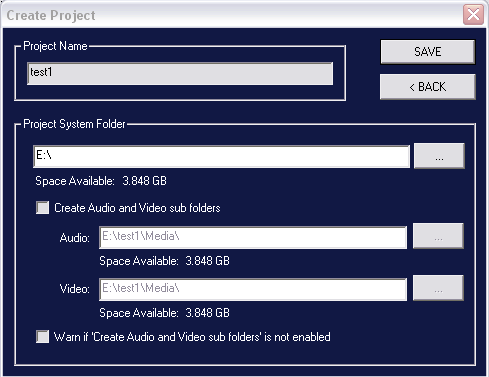
- In Project Name enter the project name. ivsBC creates a folder in the path given in Project System Folder and a project file (e.g. test1.ibl). Converted video and audio files (.dps and/or .dva and .wav) go to the auto-generated sub-folder MEDIA.
- The Project System Folder must be on a system drive (i.e. not P:).
- To use different paths for converted video and audio, enable Create Audio and Video Subfolders; this is also needed to create the .dps files on the P: drive (which accepts only .dps files).
- Click Save: the main window opens, with ivsBC version and project path in the title bar.
The conversion list
ivsBC converts a list of one or more files, sequentially.
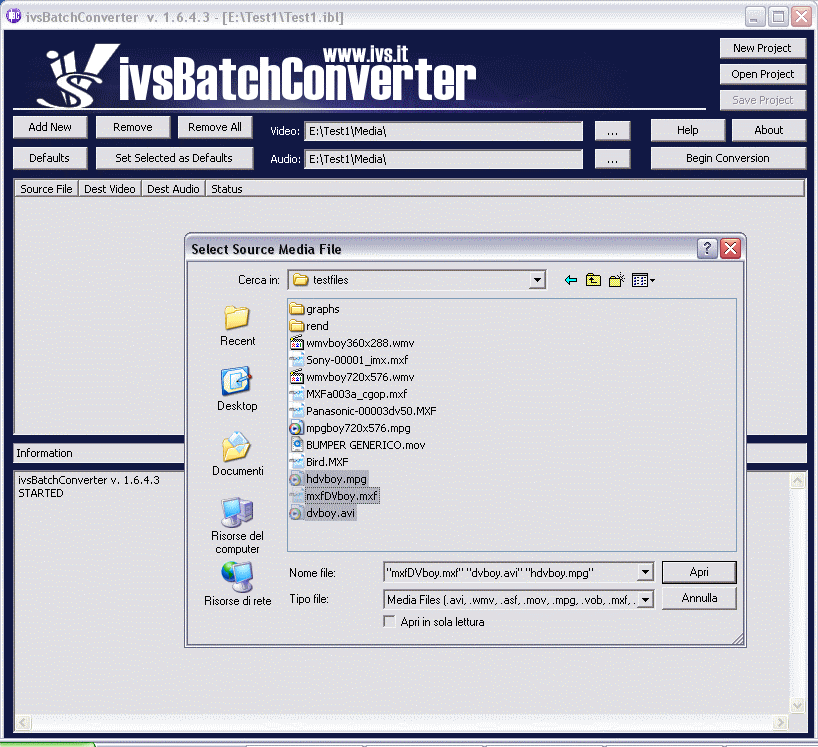
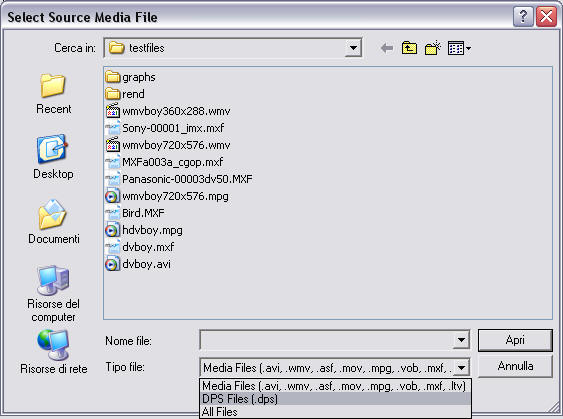
Add New opens the SELECT SOURCE MEDIA FILE window; several files can be added at once with the usual Windows multiple selection (click + CTRL or SHIFT). Supported formats are AVI, WMV, ASF, MOV, MPG, VOB, MXF, LTV and DPS. DPS is accepted as a source too, so ivsBC can be used to change the aspect ratio of .dps clips or to add effects such as glow or blur. To list .dps files in the current folder, switch the FILE TYPE field from media files to DPS files.
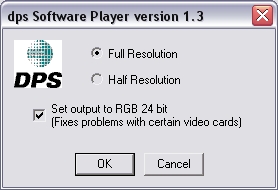
Warning: to convert DVA/DPS files correctly as sources, the dedicated decoder (DPS Player, from Leitch) must be installed and configured as shown below (it is accessible from the Windows Control Panel). It must be set to Full Resolution, because by default the DPS software player works at half resolution.
Once files are added, the list looks like this:
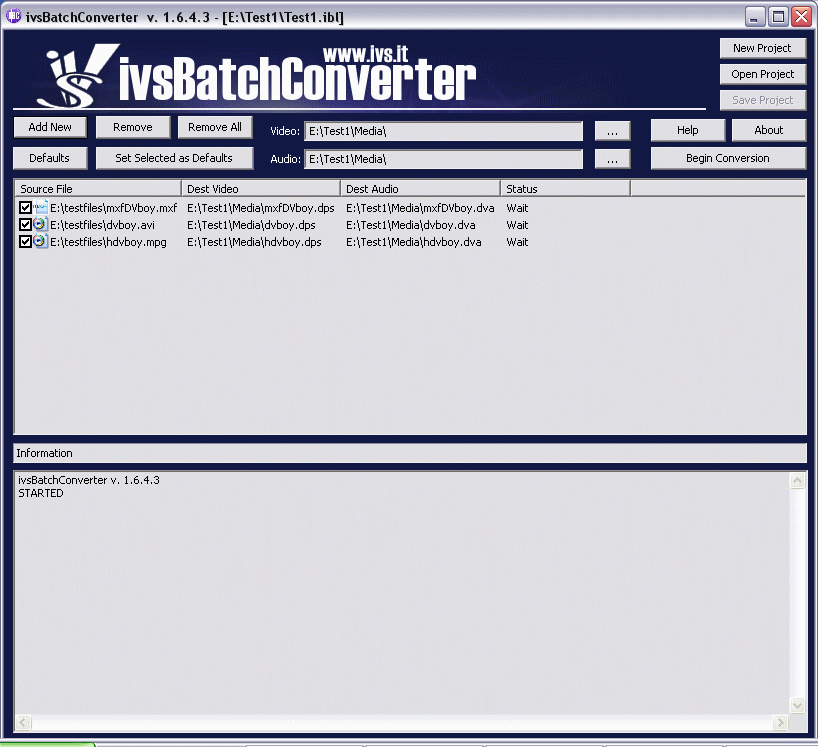
Each row is a source file; the columns are:
- Source File: a checkbox and the file name. The checkbox includes or excludes the file from conversion; it is checked automatically when a file is added and unchecked when its conversion ends.
- Dest Video and Dest Audio: the paths of the converted video and audio files. Double-click a target name to change the file name or the whole path; right-click a target file to play/check it after conversion.
- Status: Wait (to be converted), Done (completed successfully) or Error (aborted).
Files added to the list use the project's Default settings. Defaults can be changed at any time with the DEFAULT button, but files already in the list keep the settings they had when they were added. To apply the new defaults to them, select them (multiple selection allowed) and press Set Selected as Default.
Conversion properties
Double-click a file name in the list to open its Conversion Properties window, which has four sections.
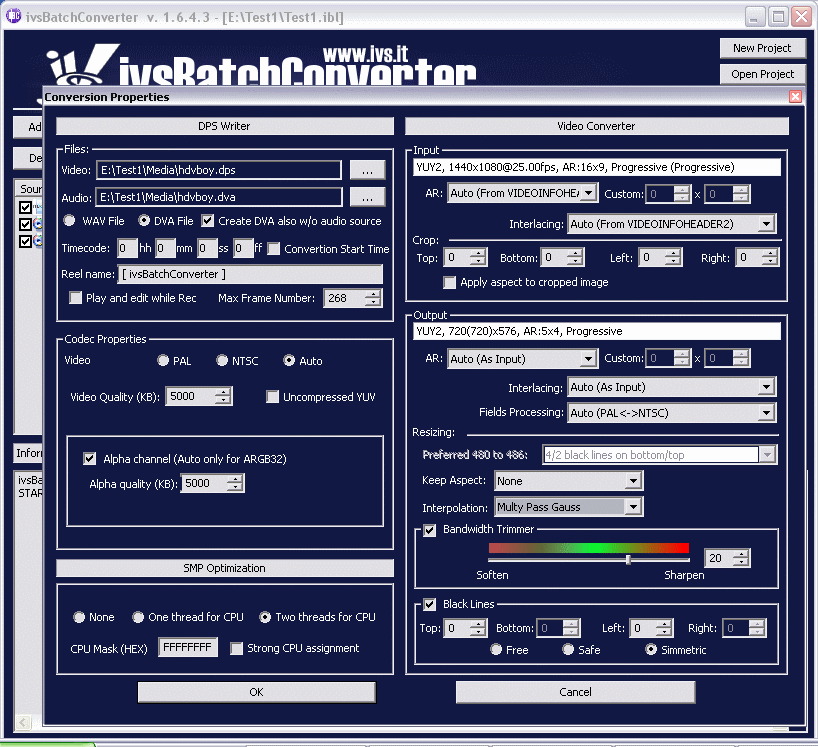
DPS Writer
- Destination paths and audio file format: WAV (standard Windows audio) or DVA (Leitch/DPS audio file linked to the associated .dps video file). Create DVA also w/o audio source creates a DVA file even if the source has no audio.
- Timecode and Reel Name, needed by professionals and for recapturing clips. The timecode can be a numeric value entered as HH:MM:SS:FF or, with the conversion start time option, taken from the system clock.
- Play and Edit while Rec, one of the main features: a full-length .dps file is created as soon as conversion starts, initially with black frames that are replaced by the source frames as conversion proceeds. The file can be added immediately to the Velocity gallery and timeline, to start editing or to check the settings without waiting for the end. A partial conversion can be set with MAX FRAME.
- Codec Properties: video standard (NTSC or PAL), bit rate (compressed in KBps, or uncompressed at 20500 Kbps), alpha channel and its data rate. With the alpha option enabled, the software checks whether the source has alpha and generates the extra channel. QuickTime files are an exception: alpha cannot be detected, so if the option is enabled and the file has no alpha, the .dps file gets a full white alpha.
SMP Optimization
Sets the best speed for each system; Two threads per CPU is the best choice for current CPUs.
Video Converter
The most important and sophisticated section. Every media file has an "INFOHEADER" where the generating software writes the main features of the file: aspect ratio (4:3 or 16:9), frame/field handling (progressive or interlaced, field 1 or field 2 dominance), frame rate, etc. ivsBatchConverter reads and shows this information in the INPUT sub-section and adds the frame resolution from its own file analysis. Not all software writes a correct INFOHEADER (information may be missing or wrong, especially about field handling), so results should be checked when the origin of a file is unknown. The AR and Interlacing fields are set automatically from the INFOHEADER but can be changed manually.
The OUTPUT sub-section sets the features of the output file. The output INFOHEADER is shown without frame rate, since all generated files are PAL (25 fps) or NTSC (30 fps). AR, interlacing and field handling default to AUTO (follow the input) and can be changed, e.g. to 4:3 to obtain a 4:3 file from a 16:9 source.
Resizing
No resizing happens when input and output have the same size and AR; any change, even of aspect ratio only, requires resizing. Options:
- Preferred 480 to 486: NTSC is 720x480, while NTSC .dps is 720x486. Instead of stretching 720x480 to 720x486, which adds an unnecessary resize, this option adds 6 black lines, preserving quality.
- Keep Aspect: what to do when input and output AR differ: None, Letterbox/Pillarbox or Crop Image.
16:9 to 4:3, crop image:

16:9 to 4:3, letterbox:

4:3 to 16:9, crop image:

4:3 to 16:9, pillarbox:

Interpolation selects the resizing algorithm used when size and/or aspect ratio change (e.g. HD 1920x1080 16:9 to PAL 720x576 4:3):
- Nearest: fastest, lowest quality.
- Linear: a little slower than Nearest, a little better.
- Cubic: for small size reductions, very fast.
- Lanczos: similar to Cubic.
- Supersampling: best for aspect ratio changes in crop mode without resolution change.
- Cubic+: best quality/performance ratio for scaling HD to SD.
- Multipass Linear and Multipass Blackman: a little better than Cubic+, but slower.
- Multipass Hamming: very similar to Cubic+ in quality and speed.
- Multipass Gaussian: best for size reduction, but the most CPU-intensive.
Field swapping, filters and effects
- Field Swapping: acts when input and output interlacing differ, e.g. for AVI DV PAL files (inverted field dominance) or NTSC/PAL transcoding where dominance must change from field 2 to field 1. See the tutorials below.
- Bandwidth Trimmer: adjusts image detail from -50 (very blurred) to +50 (very sharp). Moderate sharpening (e.g. +20) can give footage from low-end camcorders a more professional look.
- Black Lines: draws black borders on the clip, useful to hide defects in the overscan area or to create a "cinemascope" look.
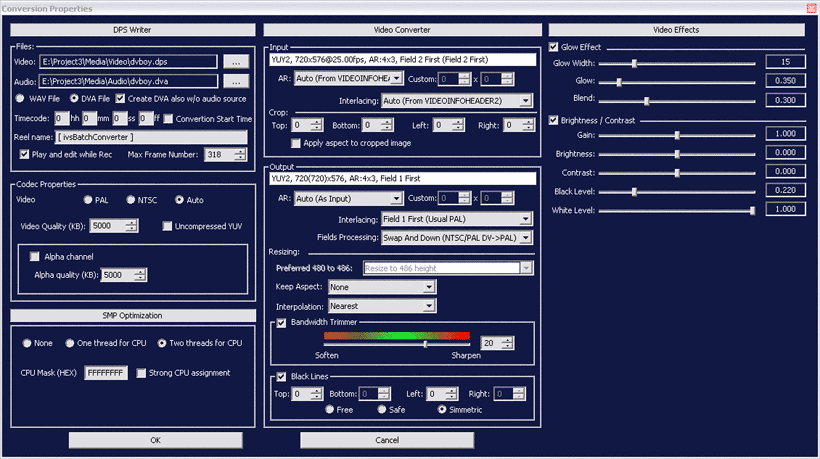
- Glow: enables a broadcast glow effect with size, intensity, blending, gain, brightness, contrast and independent black/white levels. These additional controls, and a source trimmer, are available only in the Pro edition.
Tutorials
AVI/MXF DV PAL to DPS PAL
Add the AVI or MXF DV PAL file to the list, double-click its name and set the options as follows:
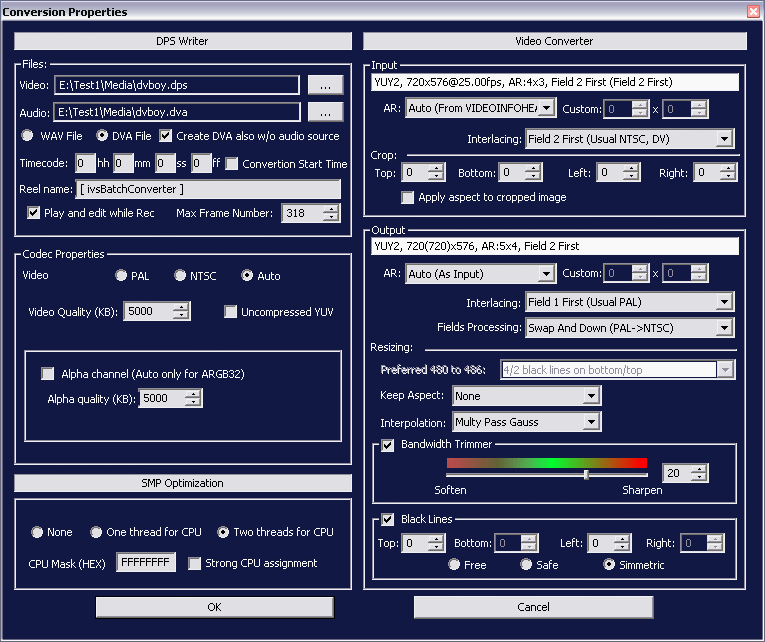
Note: pay attention to interlacing and field processing. DV PAL files have field 2 dominance and scan lines shifted up by one line compared with standard PAL.
AVI/MXF DV NTSC to DPS NTSC
Add the AVI or MXF DV NTSC file, double-click its name and set the options as follows:
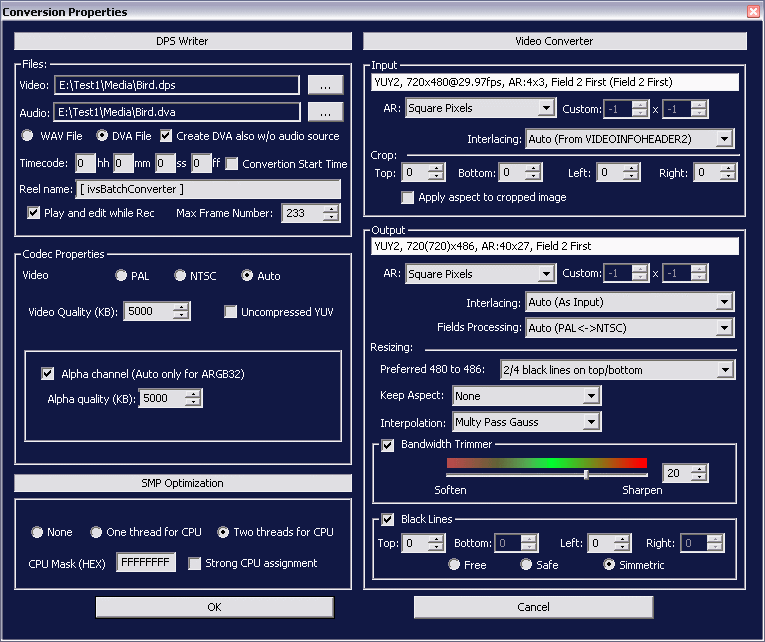
Note: if the NTSC source has 480 lines and must become NTSC 720x486, the only possible aspect ratio is "Square Pixel"; this does not cause aspect ratio problems in the destination clip. Aspect ratio changes are not allowed in this case.
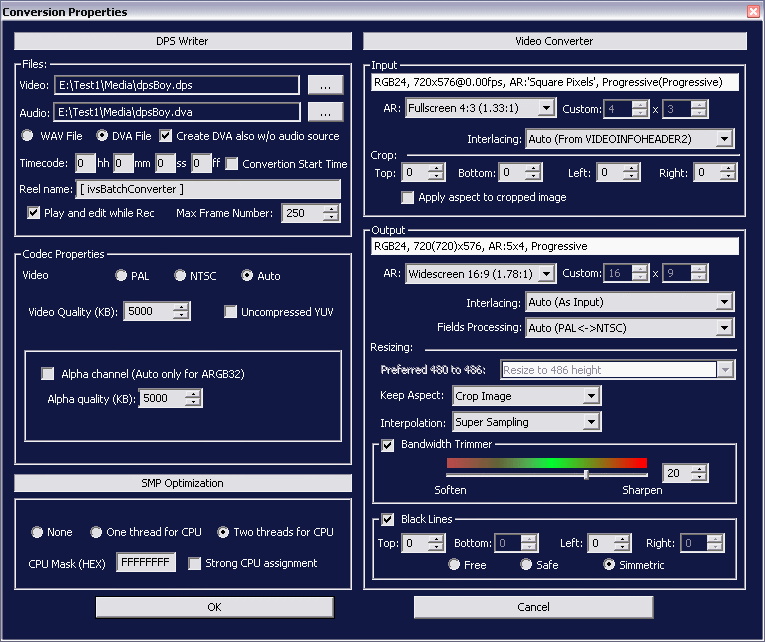
DPS 4:3 to DPS 16:9, crop image
Add a PAL or NTSC DPS file and open its Conversion Properties. These settings change only the aspect ratio:
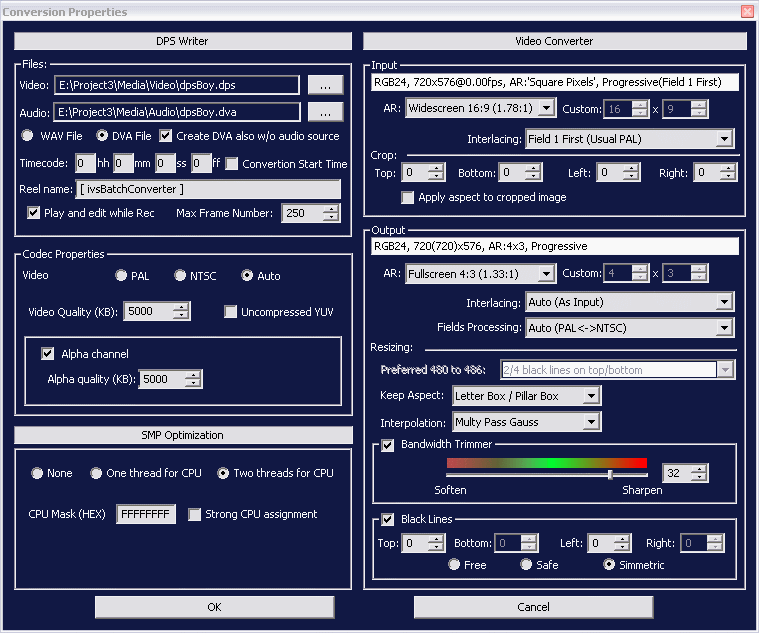
DPS 4:3 to DPS 16:9, letterbox
Add a PAL or NTSC DPS file and open its Conversion Properties. Settings:
DPS 16:9 to DPS 4:3, crop image
Add a 16:9 PAL or NTSC DPS file and open its Conversion Properties. Settings:
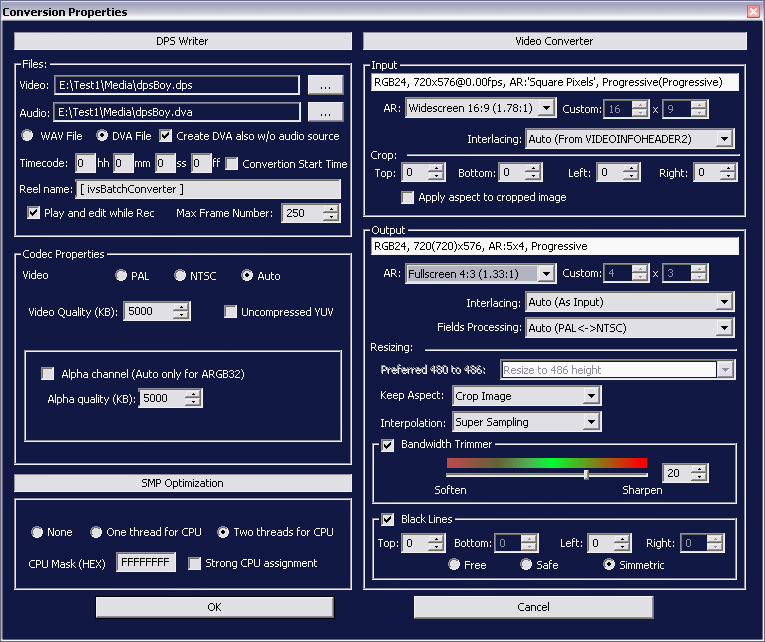
DPS 16:9 to DPS 4:3, pillarbox
Add a 16:9 PAL or NTSC DPS file and open its Conversion Properties. Settings:
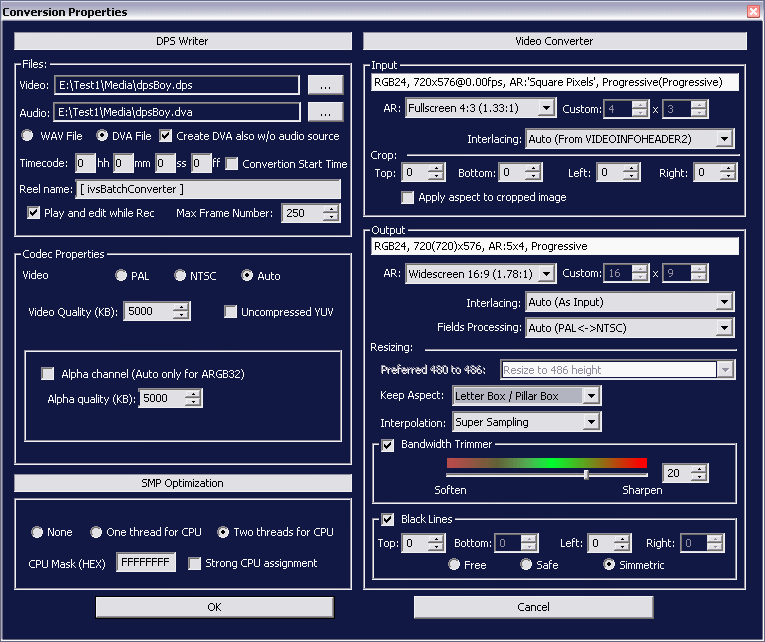
HDV 1440x1080 16:9 to 4:3 PAL letterbox DPS
Add an HDV 1440x1080@50i file (AVI or MPG), open its Conversion Properties and configure it as follows:
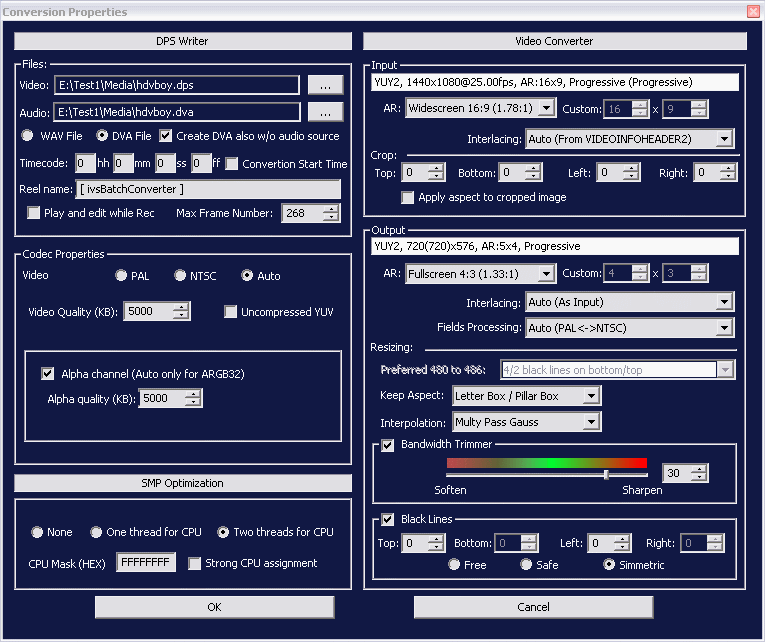
Important for all DPS (and HDV) sources: the input INFOHEADER of DPS files is always wrong, and it may be wrong for HDV too. For interlaced footage, force the input interlacing field to Field 1 for PAL sources and Field 2 for NTSC sources.
Supported source formats and decoders
ivsBatchConverter reads files through Microsoft DirectShow, like Windows Media Player and many other Windows programs. Each file type needs a suitable decoder ("DirectShow filter"); most are already installed in Windows 2000/XP or added by multimedia applications, but missing or low-quality filters may need to be replaced. As a rule, ivsBatchConverter can convert whatever Windows Media Player can play.
| Format | Decoder notes |
|---|
| 3GPP (.3gp) | Third-party filters; can be decoded by installing Apple QuickTime. |
| AVI (.avi) | Requires the codec used to encode the file. |
| MXF (.mxf) | May need an external parser; free versions were available from third parties (e.g. MXF Desktop 1.20 from Snell & Wilcox). |
| QuickTime (.mov) | QuickTime 6.5 or newer, or QuickTime Alternative. |
| DPS (.dps) | Leitch decoder (DPSPLAYER16.exe). Set it to Full Resolution: the default half resolution gives very poor .dps output. |
| DV (.avi, .mov, .mxf) | AVI DV is part of Windows; for .mov and .mxf see above. |
| DVCPRO (.avi, .mxf, .mov) | DVCPRO 25 Mbps is integrated in Windows; for .mxf and .mov see above. |
| DivX (.avi) | Requires the DivX filter. |
| H.263 | Third-party filters. |
| H.264 (MPEG-4 AVC) | Third-party filters, e.g. x264. |
| HDV (.avi, .mov, .mpg) | Usually additional MPEG-2 filters for .avi and .mpg; QuickTime 7 for .mov. |
| IMX (.mxf) | Requires both MPEG-2 TS and MXF filters. |
| Leitch (.ltv) | Filters for the Leitch Altitude file format, from Leitch. Set the LTV decoder to Full Resolution as for DPS. |
| MPEG-1 (.mpg) | Basic filters built into Windows. |
| MPEG-2 (.mpg) and MPEG-2 TS (.m2t) | Third-party filters; Ligos recommended for quality, Elecard for speed. |
| MPEG-4 (.mp4) | Third-party filters. |
| ProHD (.avi) | Third-party filters. |
| RealMedia (.rm) | An additional free filter such as Real Alternative. |
| VOB (.vob) | See MPEG-2. |
| XviD (.avi) | Requires the XviD filter. |
| XDCAM (.mxf) | See MXF. |
| WMV (.wmv) | Part of Windows; some variants may need a codec update. |
Troubleshooting
- MPEG-2: conversion stops before the end (with or without errors): caused by unsuitable filters; install updated MPEG-2 DirectShow filters.
- MPEG-2: conversion loops: with some old MPEG-2 filters the conversion restarts before reaching the end, endlessly; install updated filters.
- Reality and Play and Edit while Rec: the dpsReality board with Velocity 7.6 or 8.2 supports Play and Edit while Rec only when the destination file is on the dedicated P: drive; on other drives editing is possible only after the conversion ends. Velocity 7.6 supports it for the .dps file only; the .dva file becomes usable at the end of the conversion.
- Reality: slow conversions on P:: usually due to a host system that is not fully compatible. Reality has a PCI bus bandwidth of 5-6 MB/s only on fully compatible systems; otherwise it drops to about 1 MB/s, enough for audio during normal editing but not for real-time MPEG-2 export or maximum ivsBatchConverter speed. A good compatibility test is standard MPEG-2 export, which must run in real time.
Acknowledgements
The original guide thanked Craig Townsend (who also helped correct the guide), John David Hutton and Ulisses Simionato for their feedback, suggestions and bug reports.
All brand names, product names, file formats and trademarks mentioned are the property of their respective holders.